Getting Started
Create your first Zone5 gallery in 10 minutes.
What You’ll Build
By the end of this tutorial, you’ll have a working SvelteKit project with:
- An image gallery displaying your photos
- A lightbox for full-screen viewing with keyboard navigation
- Automatically generated image variants for responsive loading
- Blurhash placeholders for smooth loading transitions
Prerequisites
- Node.js 18+ - Download from nodejs.org
- A folder of images - JPG files work best. You can use your own photos or download sample images from Unsplash
Step 1: Create a New Project
Open your terminal and run the Zone5 CLI:
npx zone5 create ./my-photos ./my-galleryWhere:
./my-photosis the path to your folder containing images./my-galleryis where the new project will be created
The CLI will:
- Create a new SvelteKit project
- Copy your images to the project
- Generate a sample gallery page
- Install dependencies
You’ll see output like:
✓ Created project directory
✓ Copied template files
✓ Copied images
✓ Generated configuration
✓ Installed dependencies

Your Zone5 gallery is ready!
Step 2: Start the Development Server
Navigate to your new project and start the dev server:
cd my-gallery
npm run dev
The server will start at http://localhost:5173.
Step 3: View Your Gallery
Open http://localhost:5173 in your browser.
Note: first page load will be slower as Zone5 needs to process all images initially (the processing results will be cached) and Vite as well needs to some initial work.
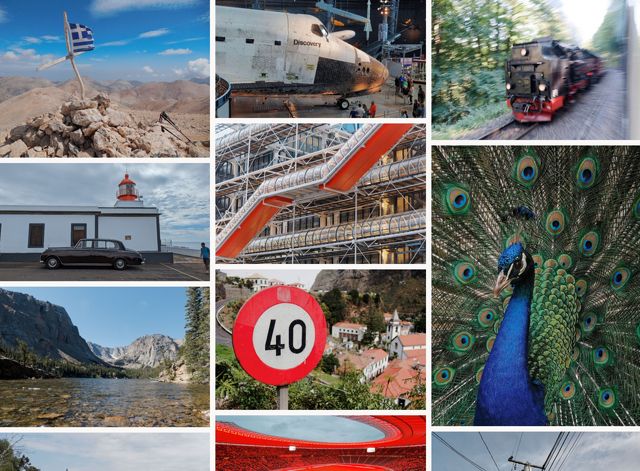
You’ll see your images displayed in a responsive grid layout. The images load progressively with colored placeholders that fade into the actual photos.
Step 4: Use the Lightbox
Click any image to open the lightbox for full-screen viewing.
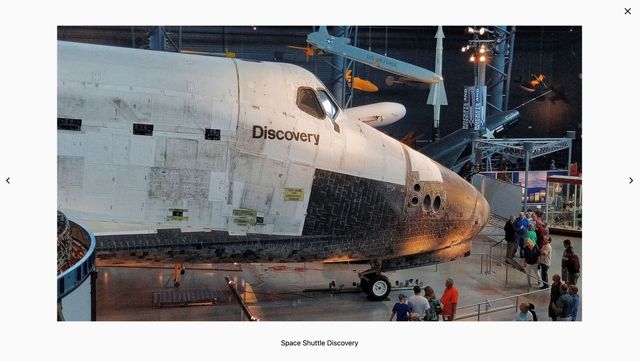
Navigate using:
- Arrow keys (
←/→) - Previous/next image - Escape - Close lightbox
- Space - Next image
- Click arrows - On-screen navigation buttons
Try clicking through your images to see smooth transitions between photos.
Step 5: Understand the Project Structure
Your new project has this structure:
my-gallery/
├── .zone5/              # Processed image cache
├── .zone5.toml          # Configuration file
├── src/
│   ├── lib/
│   └── routes/
│       ├── +layout.svelte    # App layout with Zone5Provider managing the lightbox
│       ├── +page.md          # Your gallery page
│       └── image files
├── package.json
└── vite.config.ts
Key files:
.zone5.toml- Configuration for image processingsrc/routes/+layout.svelte- Wraps your app with Zone5Provider for lightbox supportsrc/routes/+page.md- Markdown file containing your gallery
Step 6: Add a New Image
Let’s add another image to your gallery:
Copy a new JPG file to
src/routes/Open
src/routes/+page.mdand add a new image line:
The ?z5 suffix tells Zone5 to process the image.
- Save the file and check your browser - the new image appears automatically!
Grouping images: Consecutive images in markdown are automatically grouped into a single gallery:


Feel free to add additional text to tell your story. Above, in between or after your images.
What Happened Behind the Scenes
When you added the image, Zone5:
- Processed the image - Generated multiple sizes (640px, 768px, 1280px, 1920px, 2560px)
- Extracted metadata - Camera info, GPS coordinates, colors
- Calculated image blurhash - Compact placeholder for loading states
- Cached everything - Stored in
.zone5/for fast rebuilds
This all happens at build time, so your gallery loads instantly for visitors.
Next Steps
Congratulations! You’ve created your first Zone5 gallery.
Continue learning:
- Add Zone5 to an Existing Project - Integrate into your current SvelteKit app
- Customize Image Variants - Configure image sizes and quality
Reference:
- Configuration Reference - All
.zone5.tomloptions - CLI Commands - Full CLI documentation